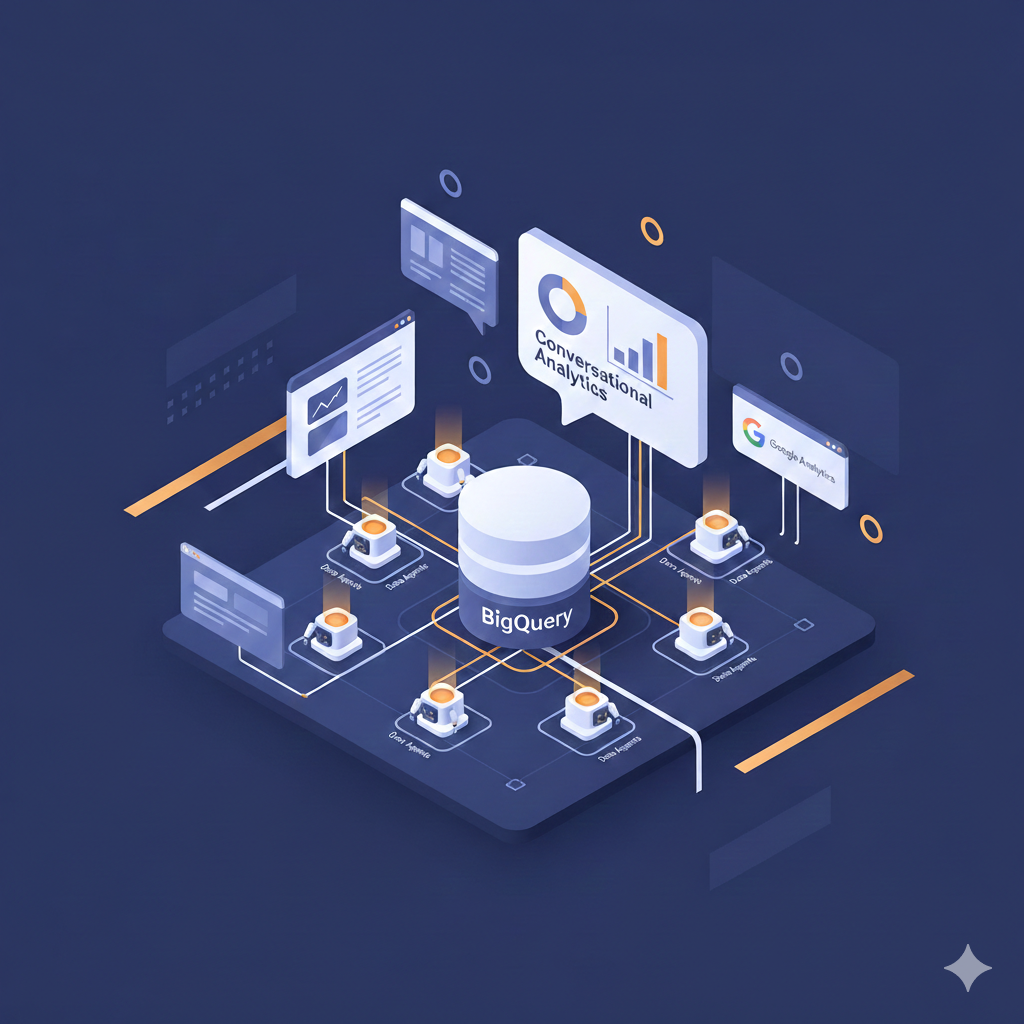
Conversational Analytics for Google Analytics Data with BigQuery Agents
A few weeks ago, a LinkedIn post caught my attention. An e-commerce manager voiced a frustration that I hear quite frequently:
The Google Analytics (GA) user interface is hard to navigate, and not even the latest AI upgrades have made it meaningfully easier to use.
While I disagree with the generalizing claim of the UI being unusable, the built-in Analytics Advisor in its current state is somewhat underwhelming.
So, if you want to use AI-enhanced workflows with your GA data today, you have to either export it to BigQuery (BQ) or manually pull reports and feed them into your AI tool of choice. That’s manageable, but not necessarily practical for the marketing teams who actually need to make sense of this data day-to-day. On the contrary, it’s yet another barrier between them and the insights they’re after.
I commented on the post suggesting two approaches depending on the context: for quick, ad-hoc interactions, an MCP server setup can work well (I’ve written about MCP servers in digital analytics previously). But for a more enterprise-oriented setup, e.g., something that can scale across an organization and doesn’t require every user to configure their own tooling, I pointed towards a different path: exporting GA data to BQ and using the platform’s built-in tools.
That exchange got me thinking it was time to write this up properly. Because while the pieces exist, Conversational Analytics within GCP is a fairly new tool.
In this post, I’ll walk through how to combine the BQ Data Transfer Service for GA with BigQuery Data Agents and the Conversational Analytics API. The result is a chat interface where users can ask questions like “What were our top-performing campaigns last quarter?” or “Show me the conversion rate trend by device category”. All of this without writing a single line of SQL. The app itself is then hosted on Cloud Run and protected by an Identity-Aware Proxy, which prevents it from being exposed to the public internet.
And here’s the real kicker: While I’m using GA data as the example, this approach works just as fine with any other structured data in BQ. Your CRM exports, advertising cost data, product catalog, or whatever else comes to mind. Your entire marketing data warehouse becomes “chatable” (is this even a word?).
What Are BigQuery Data Agents?
Before we get into the technical details of this, though, let’s have a glimpse at what the newly released BigQuery Data Agents actually are and how they differ from simply pasting your data into ChatGPT or asking Gemini a question about a table.
Data Agents are one of GCP’s Conversational Analytics features in BQ. They serve as a pre-configured layer between your data and the end user, combining natural language-to-SQL translation, context retrieval from metadata and custom system instructions, and chart generation for visualization.
The agent processes requests in the following stages:
- User input: The user submits a natural language question, along with any additional context you have provided.
- Data sources: The agent connects to BQ for data access like tables. views, and UDFs.
- Reasoning engine: The agent processes the question by orchestrating available tools, such as running queries, analyzing results, and determining the appropriate response. You also get insights into the agent’s reasoning process and the SQL queries it generates.
- Agent output: The agent returns a stream of messages containing text, data, and/or charts. For some data sources, text messages provide step-by-step reasoning, progress updates, or simply the final answer.
As always with agents, the ability to add “context” is crucial. When you create a Data Agent, you shouldn’t just point it at a table and hope for the best. I recommend investing the time in writing good system instructions. Take your time to define how the agent should interpret certain common questions, what specific business terminology means in the context of your data, and how to handle ambiguous requests. You should specify table and column descriptions, define relationships between fields, and even provide example question-query pairs (“golden” or verified queries) that guide the agent toward reliable responses. And lastly, make sure to control costs by limiting the number of bytes processed by agent-induced queries.
So, a thoughtfully configured Data Agent in combination with a well-structured data model (or semantic layer) is “all” it takes to start having conversations with your data. Every agent comes with the ability start a conversation right in the BQ interface. If you have a good data model and a concrete use case with clear instructions (easy, right?), the setup is plain sailing.
What’s interesting about the Data Agents in the BQ interface is their fairly advanced analytics capabilities, which cover statistical analysis, e.g., calculating correlation coefficients using CORR, and anomaly detection using AI.DETECT_ANOMALIES (read more about BigQuery ML support for Conversational Analytics). These types of analysis are powerful and now at the fingertips of all your agent users without writing a single line of SQL.
Still, although this entire process appears to be hands-off at first glance, I can only recommend to frequently sense check the generated SQL queries and the agent’s reasoning process, especially in the beginning. This is not a “set it and forget it” type of thing. You should actively monitor the agent’s performance, review generated queries, identify any misunderstandings or misinterpretations, and iteratively refine your instructions and data context to improve accuracy over time.
What is the Conversational Analytics API?
While the chat interface in the BQ UI is a great start, it will likely be impractical to invite every potential user to your GCP project. This is exactly where yet another feature of these agents comes into play: The ability to “publish” an agent. With this, you can programmatically interact with any given agent via the Conversational Analytics API and integrate the agent’s capabilities in any environment of your choice.
The Conversational Analytics API is designed to build an AI-powered chat interface. The API uses natural language to answer questions about structured data in BQ (and a wide variety of other Google services). With the Conversational Analytics API, you provide your data agent with business information and data (context), as well as access to tools such as SQL and visualization libraries. These agent responses are presented to the user and can be logged by the client application. Sounds familiar? It should, since this API essentially lets us (almost) recreate the Conversations feature from the BQ UI described in the previous section within our own applications.
One important caveat to keep in mind is this: The Conversational Analytics API currently comes with some limitations compared to the full BQ UI experience. It supports questions that can be answered with a single visualization, such as metric trends over time, dimension breakdowns, top values by metric, or single-metric lookups.
However, it doesn’t yet support the more advanced analytical capabilities I mentioned earlier, like prediction, forecasting, correlation analysis, or anomaly detection. Those features are, for now, exclusive to the BQ interface. The fact that Google emphasizes in their documentation that these functionalities are “not yet” available makes me hopeful that they will be added in the future.
For now, though, I wouldn’t consider this a dealbreaker for most day-to-day marketing analytics questions. The supported question types already cover a lot of ground.
P.S.: Yes, I’ve been thinking about using “CAAPI” as the abbrevation for this API, but with another “CAPI” around already, it just feels off somehow. So, for now, I’ll stick to the full name. If you have a better suggestion, let me know.
How to chat with your GA Data in BigQuery?
Now that we’ve introduced the concept of BQ Agents and that they can be accessed via the Conversational Analytics API, let’s pull this together into an end-to-end implementation. The goal is to create a custom conversational interface that allows users to interact with their GA data in BQ through natural language queries, powered by a Data Agent.
You can watch the final result in action here:
A more “behind-the-scenes” look at the app and its architecture comes here:
Layer 1: Data Source & Database Layer
Obviously, the foundation for all conversation is our GA data in BQ. In this case, I’m using the BigQuery Data Transfer Service with the Google Analytics 4 connector. Once configured, this automatically exports aggregated GA reports into BQ on a daily basis. Essentially, we’ll get access to the same data available in the GA UI, but in a more flexible format that we can query directly with SQL. The connector handles all the schema management and incremental updates, so it’s a hands-off solution once set up. It also allows you to customize the export by selecting specific dimensions and metrics, helping optimize the data structure for your particular use case.
Alternatively, you can also use the raw data export to BQ as your data source for the agent. The advantage is that you get access to all of the raw event data, which you can then “mold” into the structure that best suits your needs. This also means more upfront work, but tools like GA4Dataform can help with that.
My main point here is that there are multiple ways to get the data into BQ, enrich it with additional context (e.g., cost data, CRM data, etc.), and then make it available to the agent. But please make sure not to skip this step, because this is where you set the stage for the quality of the conversations later on.
Layer 2: Contextual Layer
This is where the Conversational Analytics API and Data Agents come in. You create a Data Agent (as described above), assign it relevant Knowledge Sources, e.g., BQ tables, and configure it with system instructions, exemplary queries, etc. that help it understand your data’s structure and business context.
The agent interprets a user’s question and queries BQ on demand through the Streamlit application. This means our existing access controls and data governance policies remain in place. The agent generates SQL from the user’s natural language input, executes it against BQ, and returns the results as a human-readable response.
Once again, you can heavily influence the quality of your conversations by taking the time to properly define and document your data context: Table descriptions, column-level documentation, business term definitions, and example queries all contribute to more accurate responses. Since this is the step where you “onboard” or “train” your agentic analyst, make sure to take your time here, too. Otherwise, you’ll end up with a frustrating user experience later.
Layer 3: Interface Layer
The final layer is the user-facing application. I’ve built a custom Streamlit application that provides a clean chat interface for interacting with the Data Agent. The app is based on Google’s publicly available Quickstart app and manages conversation state, rendering responses including text, tables, and charts. But you could just as easily build this in any other framework or platform of your choice, e.g., a custom web app, a Slack bot, or even a Google Sheets add-on.
I decided to host the app on Cloud Run, which gives us serverless scalability without infrastructure management. To restrict access to authorized users within my GCP organization, I’ve secured the app with an Identity-Aware Proxy (IAP).
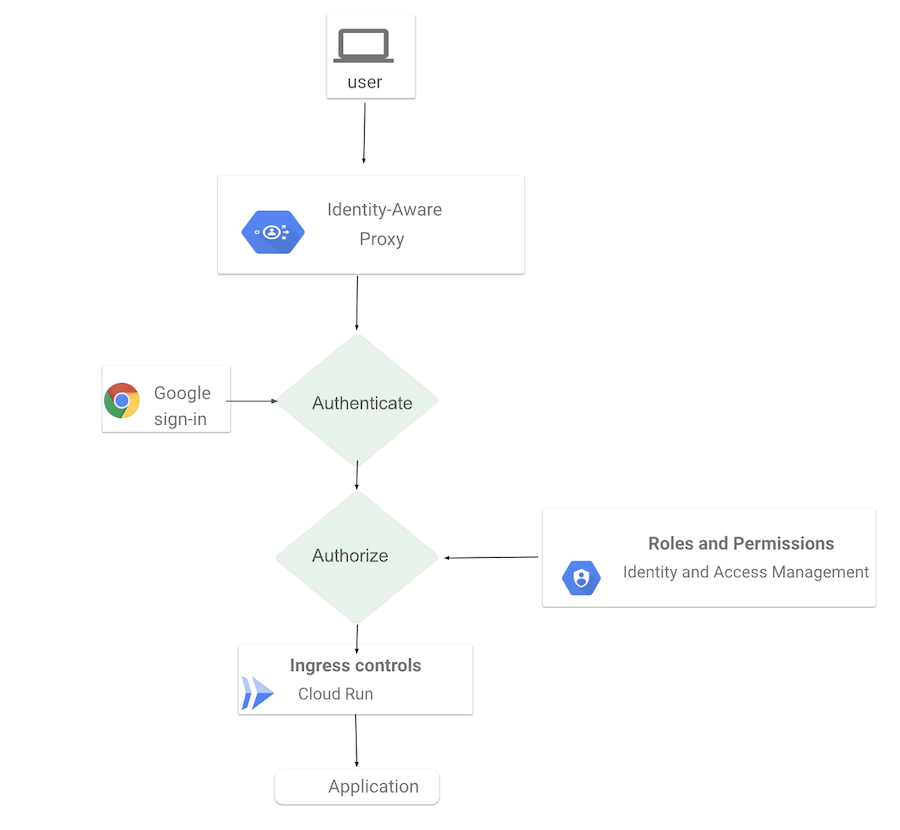 Identity-Aware Proxy for Cloud Run
I mean, we don’t want any random person on the internet asking questions about our data, right? With IAP, only users with the appropriate Google account permissions can access the app, and all traffic is encrypted. This way, we maintain a secure environment while still providing easy access to our marketing teams.
This setup means marketing teams get a familiar chat-style interface accessible via a simple URL. At the same time, IT maintains control over who can access it and what data they can query. No local installations, no API keys floating around in spreadsheets. All it takes is a browser and the right Google account.
Still, in the videos, you can see that I’m actively checking in on the agent’s reasoning process and the generated SQL queries. And I can only recommend doing that as the end user, because eventually it will be you that will take the output and share it with your stakeholders. You’re still responsible for the final recommendation!
Conclusion
Now, before you get too excited about this new tech, let me offer some perspective: Being able to chat with your data is genuinely useful, but it (most likely) won’t magically solve all your analytics challenges.
From a user experience perspective, the API can be slow at times, and, as mentioned, it doesn’t yet support advanced analytical capabilities such as ML-powered anomaly detection or forecasting. More importantly, from an organizational standpoint, a conversational interface doesn’t replace the need to ask the right questions in the first place. Neither will it proactively tell you “what truly matters.” You still need a clear understanding of your business outcomes: What are we trying to achieve, and how will we know if we’ve done that? No amount of AI tooling absolves you of that fundamental requirement.
What it does do, though, is offload the basics. The routine “how did campaign X perform last week” or “what’s our conversion rate by channel” type questions that currently require either SQL skills, a round-trip to your analytics team, or frequent training of your staff. Freeing up that capacity, both for the people asking the questions and the people who used to answer them, is where the real value lies.
Happy chatting with your data! If you have any questions about the implementation, want to know how to get started, or would like some sparring on conversational analytics, feel free to reach out.